Day 29 - Secure Defaults & Habits
Learn how secure default settings and simple cyber habits can drastically reduce your attack surface and protect your digital life.
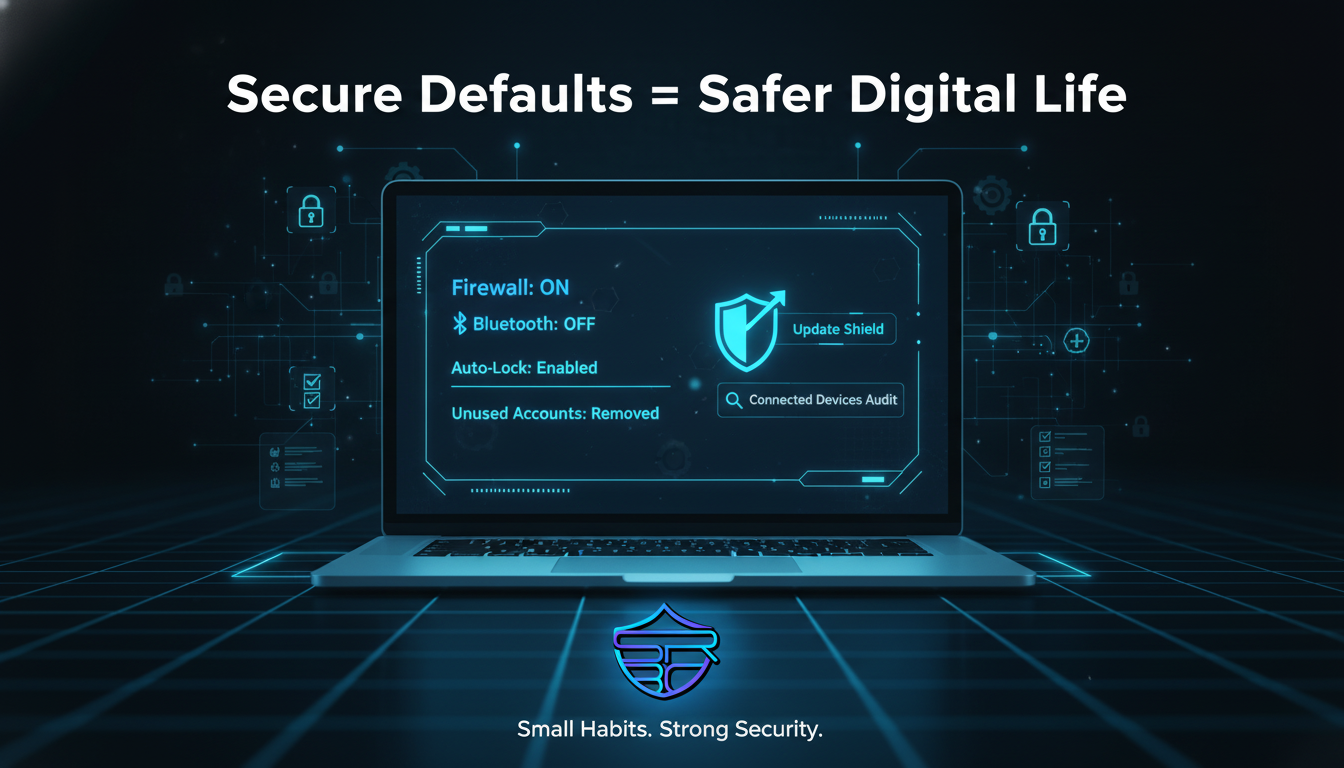
🔐 Secure Defaults & Habits
Cybersecurity is often misunderstood as something complex that only experts manage.
In reality, some of the strongest protections come from simple default settings and repeatable digital habits.
A device with:
- firewall disabled
- Bluetooth always on
- no auto-lock
- old unused apps
- forgotten accounts
- excessive permissions
creates easy opportunities for attackers.
The good news?
Most of these risks can be reduced in less than 5 minutes per month.
Secure defaults are the silent guardians of your digital safety. When configured correctly, they continue protecting you even when you are busy, distracted, or offline. :contentReference[oaicite:0]{index=0}
🧠 What Are Secure Defaults?
Secure defaults mean systems start in the safest possible state.
Instead of enabling everything and expecting users to disable risky features later, secure systems follow a “deny by default, allow only what is needed” mindset.
This includes:
- enabled firewall
- automatic updates
- short screen timeout
- restricted permissions
- disabled unused radios
- strong authentication
- minimal exposed services
The idea is simple:
The safest setting should be the default setting.
This dramatically reduces human error and limits common attack paths. :contentReference[oaicite:1]{index=1}
🚨 Why Bad Defaults Become Security Risks
Many users never change factory settings.
Attackers know this.
That is why they often target:
- default passwords
- always-discoverable Bluetooth
- public file sharing
- open remote access services
- unused browser extensions
- old inactive accounts
- insecure app permissions
A forgotten feature can become a hidden doorway.
For example:
- Bluetooth left enabled can expose devices to wireless attacks
- Unused browser extensions may collect browsing data
- Old online accounts can become takeover targets
- Disabled firewalls leave devices exposed to malicious inbound traffic
Even unused Wi-Fi and Bluetooth services should be turned off when unnecessary. This directly reduces exposure to nearby attackers and opportunistic scans. :contentReference[oaicite:2]{index=2}
🛡 Essential Secure Defaults Everyone Should Enable
1) Enable Firewall Protection
Your firewall is the first line of defense between your device and suspicious traffic.
Best practice:
- Keep firewall enabled on public, private, and domain profiles
- Avoid allowing unknown apps through it
- Remove old firewall exceptions regularly
A firewall works best when it follows block by default, allow by exception.
⏱ 2) Use Aggressive Auto-Lock
Physical device access is often overlooked.
Set:
- phone lock: 30 seconds
- laptop lock: 1 minute
- desktop lock: 1–2 minutes
This prevents unauthorized access in:
- office desks
- classrooms
- coffee shops
- public transport
- shared home spaces
📶 3) Disable Wireless Services When Idle
Turn off these features when not actively needed:
- Bluetooth
- Wi-Fi hotspot
- NFC
- AirDrop / Nearby Share
- printer discovery
- device pairing mode
Bluetooth should especially remain disabled until intentionally used. NIST specifically recommends disabling Bluetooth whenever it is not needed. :contentReference[oaicite:3]{index=3}
🧩 4) Remove Unused Software & Extensions
Unused software increases:
- vulnerabilities
- update burden
- privacy risk
- hidden permissions
- exploit surface
Delete:
- unused browser extensions
- old VPN apps
- abandoned cloud sync tools
- cracked software
- outdated plugins
- remote desktop tools you no longer use
The less software you run, the smaller your attack surface.
👤 5) Delete Old Accounts & Sessions
Inactive accounts are dangerous.
Review and remove:
- old social accounts
- unused email addresses
- legacy admin users
- old cloud storage accounts
- forgotten GitHub or developer accounts
- inactive third-party app logins
Dormant credentials are common takeover targets.
Industry security baselines recommend disabling inactive accounts automatically after a set time period. :contentReference[oaicite:4]{index=4}
🔄 Build a Monthly Security Habit Loop
The strongest cyber defense is consistency.
Use this monthly 5-minute cyber hygiene checklist:
- Check firewall status
- Review lock screen timer
- Remove old downloads
- Disable unused wireless services
- Review connected devices
- Remove unnecessary app permissions
- Delete unused accounts
- Update operating system
- Update browsers and extensions
- Check login alerts
Repeat every month.
Small habits prevent big incidents.
🏢 Why This Matters for Families, Students & Businesses
Secure defaults are useful for everyone.
👨👩👧 Families
Prevents:
- child privacy leaks
- device misuse
- accidental sharing
- unknown Bluetooth pairing
🎓 Students
Protects:
- campus Wi-Fi use
- assignment files
- shared lab devices
- public computer access
🏢 Businesses
Reduces:
- insider misuse
- shadow IT risk
- stale accounts
- unauthorized local access
- malware spread paths
🎯 Key Takeaway
Cybersecurity does not always require expensive tools.
Often the biggest improvement comes from:
secure settings + disciplined habits
Turn off what you do not use.
Delete what you no longer need.
Lock what matters.
Update what protects you.
That is how strong cyber hygiene is built.
📣 Final Awareness Message
At ASRBD, we believe digital safety starts with practical habits anyone can follow.
Secure defaults create protection that works quietly in the background.
Today’s small settings review may prevent tomorrow’s serious compromise.
Stay connected with ASRBD for more cybersecurity awareness, cyber hygiene education, and practical defense strategies.